Guides
How to Print Your Pattern
To print a cross-stitch pattern from Xstitchify, download the PDF Pattern or Download Full Pattern file first. Then open that PDF on your device and print it from your browser or PDF viewer.
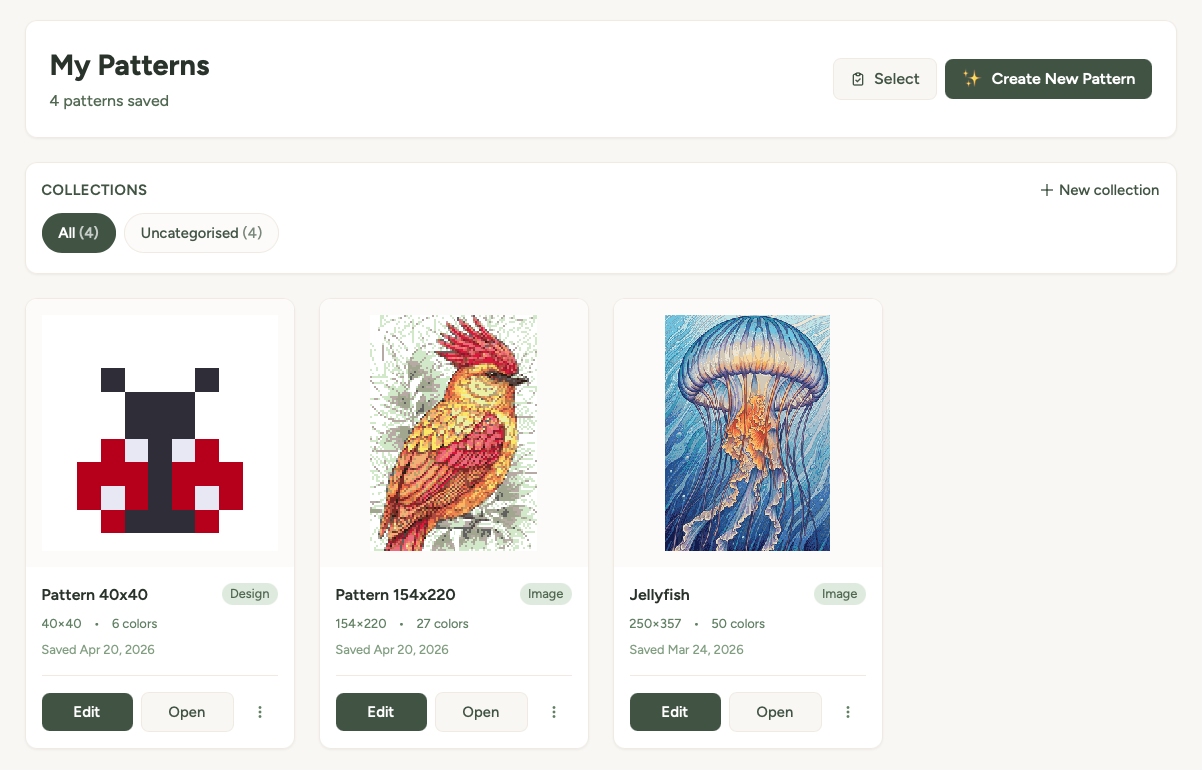
Print your pattern
- Open your pattern from My Patterns or the editor.
- Choose PDF Pattern or Download Full Pattern. The PNG option is only a preview image and does not include the full stitch chart pages.
- When the download finishes, open the PDF from your browser's download icon or your device's Downloads folder.
- Use Print in the PDF viewer. On most computers this is File > Print or Ctrl+P on Windows / Cmd+P on Mac.
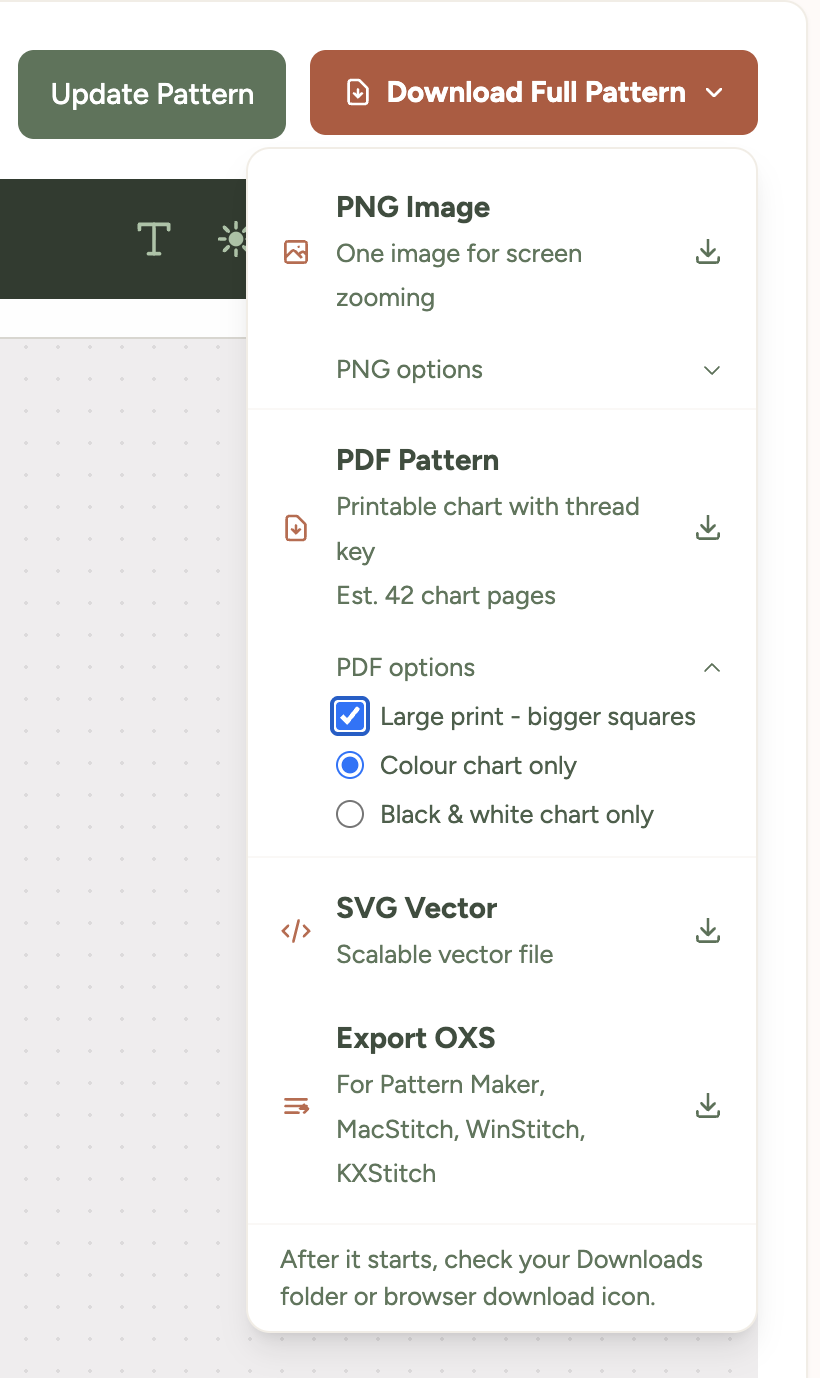
Tip: If your chart squares are too small on paper, go back to Xstitchify, turn on Large print PDF, and download the PDF again. See Large Print Patterns for instructions.
Where the file goes
For browser-by-browser instructions and help choosing a save folder, see Finding Your Downloads.
After you click the PDF download button, your browser saves the file. Usually it goes to:
- Windows or Mac: your Downloads folder, or the download icon near the top of your browser.
- iPhone or iPad: the Safari or Chrome download icon, then the Files app if you choose to save it.
- Android: the Downloads app, Files app, or the browser download notification.
If you are not sure where it saved, try downloading again and watch for the browser message at the top or bottom of the screen. Re-downloading a pattern you already downloaded does not use another credit.
Paper size and printer settings
Xstitchify pattern PDFs are made to fit US Letter and A4 pages, with margins built in.
- US Letter paper: choose Letter / 8.5 x 11 in. You can print at 100% or use Fit to printable area if your printer warns about margins.
- A4 paper: choose A4, then choose Fit to printable area, Fit to page, or Shrink oversized pages.
- A3 or larger paper: choose the larger paper size first, then use Fit to printable area if you want the chart enlarged.
- Page range: choose All pages unless you only want to reprint one chart page.
- Pages per sheet: keep this at 1. Avoid booklet, 2-up, or multiple-pages-per-sheet settings for stitch charts.
- Orientation: leave it on portrait or auto-rotate. The PDF is already laid out page by page.
Best setting for most people: choose your real paper size, then use Fit to printable area. The printed chart does not need to be life-size - each square still represents one stitch.
Which download should I choose?
- PDF Pattern / Download Full Pattern: best for printing. Includes chart pages, thread key, and stitch information.
- Large print PDF: best if you want bigger, easier-to-read chart squares. It may print across more pages.
- PNG Preview: best for looking at the design on screen. It is not the full printable chart.
If the print looks wrong
- If the chart is cropped, choose Fit to printable area or Fit to page in your printer settings, especially on A4 paper.
- If the chart is too small to read, use Large print PDF instead of the standard PDF.
- If only one page prints, check the page range in your print dialog and choose All pages.
- If you downloaded a PNG by mistake, go back and choose PDF Pattern.
Using your PDF in Pattern Keeper
See Using Pattern Keeper for importing your PDF, answering the shaded-edge questions and checking thread numbers.
Finding previous downloads
Downloaded files also appear in My Downloads. You can re-download the same PDF from there if you need another copy.
PDF appearance: Choose preset colour themes with Standard, or add your own logo, colours and instructions with Pro. See PDF Colours and Branding for the options and an example PDF.
Was this guide helpful?
Still need help?
Send us a message and we'll get back to you as soon as we can. You can also reply to any email from Xstitchify.