Guides
How to Use the Pattern Library
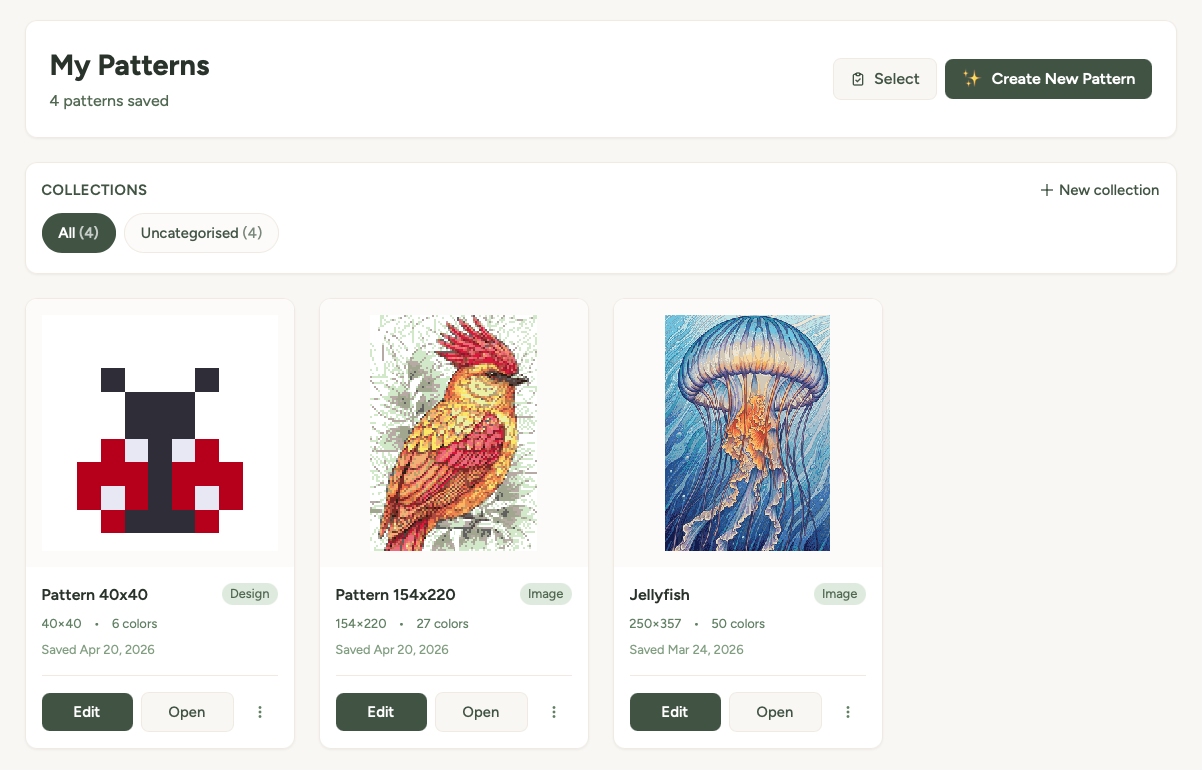
The Pattern Library is where all your saved patterns live. Any pattern you create and save ends up here, ready to re-download, edit, organise into collections, or share with a link.
Saving patterns
You can save a pattern from any of the tools - the Pattern Maker, Text Generator, QR Generator, Designer, or AI Generator. Just look for the Save to Library button after you've created a pattern.
- Create your pattern using any of the tools.
- Click Save to Library (you'll need to be logged in).
- Your pattern appears in My Patterns.
Note: You need a free account to save patterns. If you haven't signed up yet, you'll be prompted to create one - it only takes a moment and no credit card is needed.
Collections
Collections let you organise your patterns into groups. Think of them like folders.
- Create a collection - click the "+" or "New Collection" button at the top of the library.
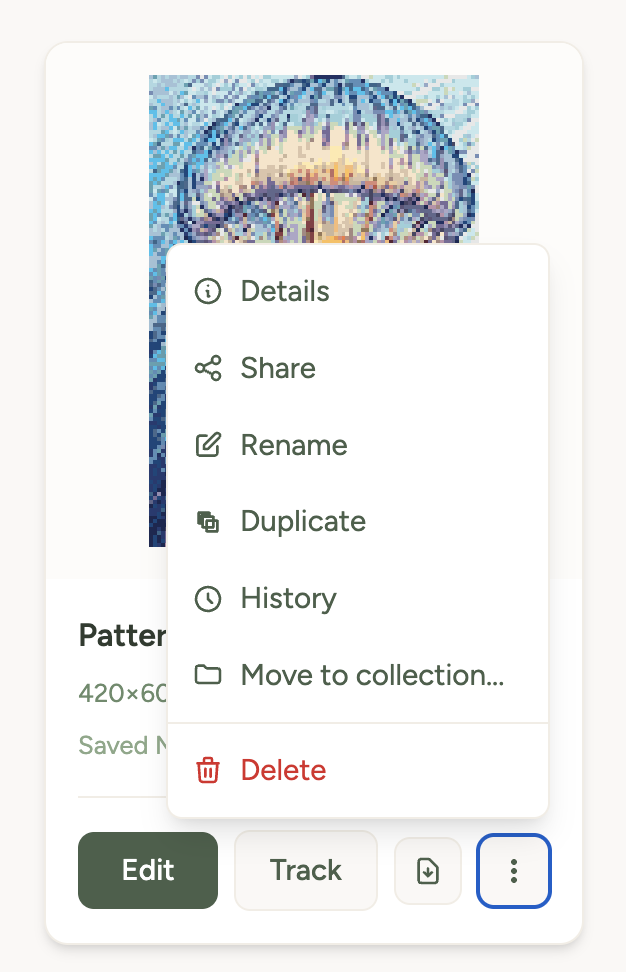
- Move patterns - use the pattern's menu to move it into a collection, or use bulk select to move several at once.
- Collection covers - set any pattern as the cover image for a collection so you can spot it at a glance.
- Rename or delete - manage your collections from the collection strip at the top of the library.
Patterns that aren't in any collection appear under "Uncategorised". The "All" view shows everything regardless of collection.

Bulk actions
Need to organise a lot of patterns at once? Use bulk select mode:
- Click the select checkbox or enter selection mode.
- Tick the patterns you want to act on (or use "Select All").
- Choose an action - Move to Collection or Delete Selected.
Sharing patterns
You can share any pattern with a link:
- Open the pattern's menu and click Share.
- A share link is generated that you can copy and send to anyone.
- Rotate link - generates a new link and invalidates the old one, in case you want to stop sharing with someone who has the old link.
- Revoke - removes sharing entirely, making the pattern private again.
A small indicator on the pattern thumbnail shows whether it's currently shared (public) or private.
Viewing and editing patterns
Click on any pattern to see the full details - the chart preview, thread list, stitch count, and download options.
- Rename - click the pattern name to edit it.
- Edit - opens the pattern in the editor so you can make changes. Your edits are saved back to the same pattern in your library.
- Re-download - download the PDF or PNG again as many times as you need. Use the PDF if you want to print the pattern.
- Delete - remove the pattern from your library.
Free vs paid storage
Every pattern you create is automatically saved to your library - no limit on how many you can store, regardless of your account type. Your patterns stay in your library forever, even on the free tier.
PNG colour previews are free for everyone. To download print-ready PDFs with stitch charts and colour keys, you'll need download credits (5 free on signup) or a subscription.
Need paper copies? See how to print your pattern.
Was this guide helpful?
Still need help?
Send us a message and we'll get back to you as soon as we can. You can also reply to any email from Xstitchify.