Guides
Check your pattern before you export
The Stitch Report is an optional last look at your pattern before you export it. It points out the small things that are slow or fiddly to stitch - lone stitches, tiny clusters, colours used only once or twice, and large filled backgrounds - so you can decide what's worth tidying. Nothing changes unless you choose to apply a fix.
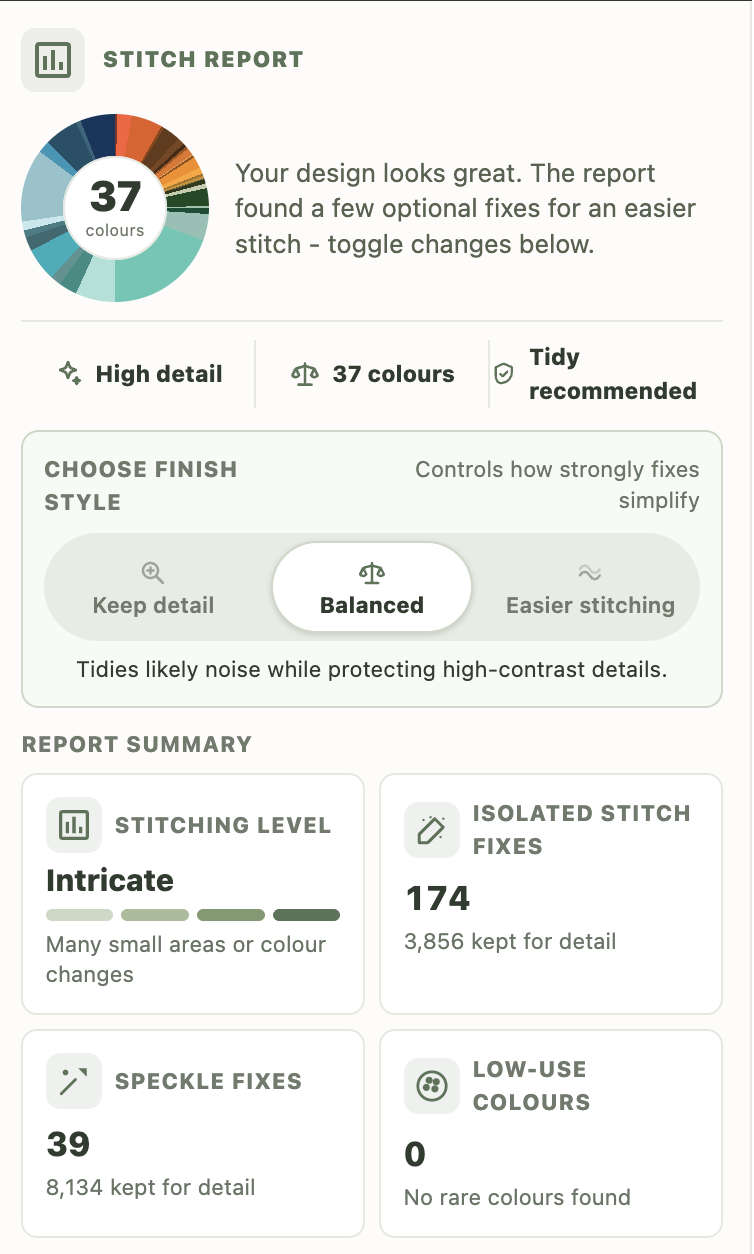
What the Stitch Report checks
The report is a quick finishing pass for a pattern you're already happy with. It checks five things:
- Stitching level - a simple difficulty label based on colour changes and small areas.
- Isolated stitches - lone stitches that may be easier to merge into surrounding colours.
- Tiny clusters - one- or two-stitch islands that can create confetti.
- Low-use colours - colours used only a few times across the pattern.
- Background - large filled areas that may work better as unstitched fabric.
Tip: Run the report near the end, once your colours and shapes are settled - not while you're still designing. It's most useful for deciding what to tidy just before you stitch, when the creative choices are already made.
Free preview vs full report
Free users can run a preview from the editor. The preview shows high-level checks such as stitching level, colour count, and whether cleanup opportunities were found.
The full Stitch Report is included with paid plans. It unlocks exact recommendation counts, finish styles, toggles for each cleanup type, report impact, one-click cleanup, and reset.
How to run it
- Open a pattern in the editor.
- Open the Stitch Report panel from its toolbar icon - or from the download menu when you're about to export.
- Choose Run Free Preview or Run Stitch Report.
- Apply any fixes you want to keep, then carry on to export.
Choosing a finish style
Paid users can choose how strongly the report should simplify the pattern before applying fixes.
- Keep detail - the lightest cleanup pass.
- Balanced - the recommended middle setting.
- Easier stitching - a stronger cleanup pass for simpler charts.
You can switch individual recommendations on or off before applying them, preview the selected fixes on the canvas, and hide the preview if you only want to read the counts. Background removal is marked as a bigger change and is opt-in.
Why detected and recommended counts can differ
The top cards show what the report detected in the current pattern before cleanup. The recommendation rows show how many stitch changes the selected finish style would actually apply.
For example, a pattern can contain more isolated stitches than the report recommends changing, because some lone stitches help preserve edges, line art, or important detail. Keep detail changes fewer stitches, while Easier stitching is allowed to simplify more.
Applying and resetting fixes
When you apply selected fixes, Xstitchify changes the current pattern in the editor. If the result is not what you wanted, use Reset in the Stitch Report panel to restore the stitches changed by that report session.
For smaller manual changes, use the brush tools and the targeted cleanup brush instead.
How it relates to confetti cleanup
The Stitch Report does not replace the confetti cleanup tools. It packages them into a final review step, alongside colour and background checks, so you can decide what to clean up before export. If you want a deeper explanation of confetti stitches, see the cross stitch confetti guide.
Was this guide helpful?
Still need help?
Send us a message and we'll get back to you as soon as we can. You can also reply to any email from Xstitchify.