Guides
Stitch Tracker
The stitch tracker lets you mark stitches off as you sew them, right inside the pattern editor. Your chart fills with colour as you go, showing you exactly what's done and what's left. Progress is saved to your Xstitchify account, so you can start on one device and carry on from another.
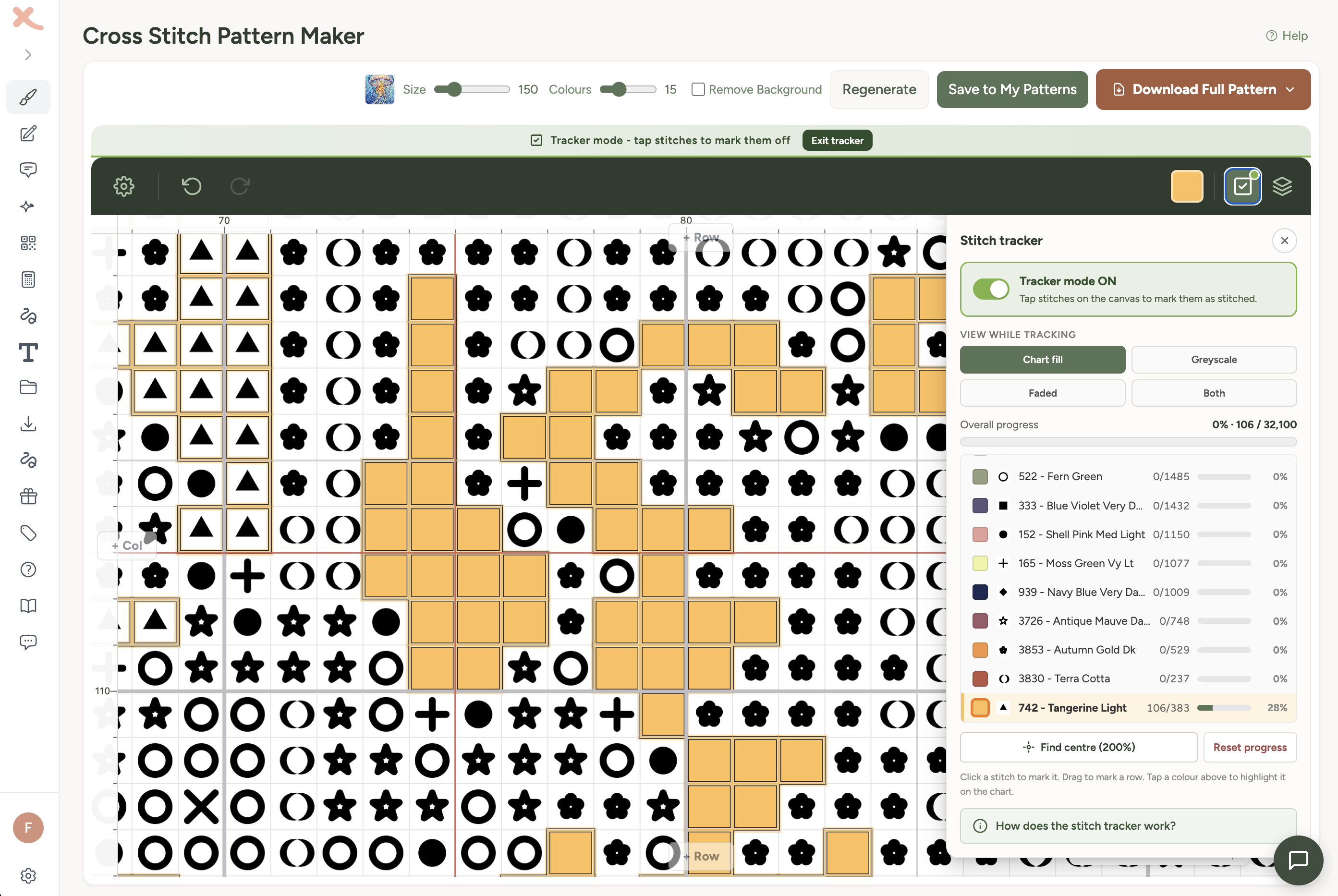
Quick answer: Open a saved pattern from My Patterns, choose Track, then tap or drag stitches to mark them done. The tracker is available on Standard, Pro, and active trial accounts.
What the tracker does
The tracker is for following your stitching progress. It does not change the pattern chart itself. It saves a separate progress layer that remembers which stitches you have marked as stitched.
- Mark single stitches, rows, or larger areas as complete
- Unmark stitches if you tap the wrong square
- See overall progress and per-thread progress
- Highlight one thread colour on the chart
- Switch back to the full editor when you need to change the design
Works across all your devices
The stitch tracker runs in your browser, so there's nothing to download or install. Start tracking on your laptop at home, pick it up on your iPad on the sofa, or check your progress on your phone while you're shopping for thread. Log in with the same account and your tracked stitches will be there.
This means you're not locked into one platform. Unlike apps that only work on Android or only on iPad, Xstitchify's tracker works on:
- iPad and iPhone (Safari or any browser)
- Android phones and tablets (Chrome or any browser)
- Windows PC and laptops
- Mac desktop and MacBook
- Chromebook and Linux
Tip: Add Xstitchify to your home screen on iPad or iPhone for a full-screen, app-like experience. In Safari, tap the Share button and choose "Add to Home Screen".
How to start tracking
- Log in to your Xstitchify account.
- Open My Patterns and choose the saved pattern you want to stitch.
- Choose Track to open the pattern directly in tracker mode.
- If you opened the pattern with Edit instead, use the tick/checkmark Stitch tracker button in the toolbar and turn Tracker mode ON.
- Tap or drag across stitches on the canvas to mark them as done.
Marked stitches fill with their thread colour, and you'll see the overall progress bar and per-thread counts update in real time.
If you cannot see Track: make sure the pattern is saved to your library, you are logged in, and your account is on Standard, Pro, or an active trial. Free accounts see the tracker button, but it links to the upgrade page.
Switching between editing and tracking
The editor and the tracker share the same view - there's no separate app or page. When tracker mode is on, the drawing tools are hidden so you don't accidentally edit while tracking. To make a change to your pattern:
- Turn tracker mode OFF using the toggle in the tracker panel.
- Make your edits (change colours, add stitches, fix mistakes).
- Turn tracker mode back ON to continue marking stitches.
Your tracked progress is saved separately from the pattern itself. Changing thread colours, adding stitches, or removing stitches edits the pattern; marking stitches in tracker mode only updates your progress layer.
Tip: If you try to edit a stitch you've already marked off, a confirmation dialog will ask before letting the edit through. This helps stop accidental changes while you're in the flow of tracking.
Importing patterns from other tools
You can import OXS files from Pattern Maker, MacStitch, WinStitch, or KXStitch, Pattern Maker .xsd files, plus PCStitch 7/8 .pat files, and use the stitch tracker on them. Pattern import is available on Standard, Pro, and active trial accounts.
- Go to Import Patterns and upload your file.
- The pattern opens in the editor. Save it to your library.
- Open the saved pattern and turn on tracker mode to start tracking.
This means you can use the stitch tracker on any pattern - not just ones you created in Xstitchify. Import a pattern you started in Pattern Maker, use the editor to clean it up or adjust colours if needed, then switch to tracking mode and start marking stitches off.
The tracker panel
The tracker dropdown panel shows everything you need to follow your progress:
On/off toggle
A clear switch at the top turns tracker mode on and off. When it's on, tapping the canvas marks stitches. When it's off, the normal drawing tools are available.
View style
Four options for how the canvas looks while tracking:
- Chart fill (recommended) - the chart shows symbols on a white background. Stitches you've marked fill in with their thread colour, so done stitches stand out clearly.
- Greyscale - keeps the colour chart visible, but drops colour from stitched cells so they fade into the background.
- Faded - keeps the colour chart but washes stitched cells out with a white overlay.
- Both - combines greyscale and faded for maximum contrast between done and to-do.
Overall progress
A progress bar and percentage showing how much of the entire pattern you've completed, with a stitch count (e.g. 1,234 / 5,678).
Per-thread breakdown
Every thread colour in the pattern gets its own row showing:
- The colour swatch and chart symbol so you can match it to the chart
- Thread code and name (e.g. DMC 310 - Black)
- Stitched vs total count (e.g. 42/156)
- A mini progress bar and percentage
Tap any colour row to highlight all stitches of that colour on the canvas with a glowing outline. This is useful for finding the next area to stitch when you're working on one colour at a time.
Find centre
Jumps the view to the centre of the pattern at 200% zoom. Useful when you've scrolled around a large pattern and want to get back to the middle, or if you like starting from the centre of the chart.
Reset progress
Clears all your tracked stitches so you can start over. This can't be undone, so the button asks for confirmation first.
Marking stitches
With tracker mode on:
- Tap a stitch to mark it as done (or unmark it).
- Drag across multiple stitches to mark a row or area in one stroke.
- The first stitch you tap sets the direction - if you tap an unmarked stitch, dragging will mark. If you tap a marked stitch, dragging will unmark.
Your progress saves automatically as you go. There's no save button to press - just mark stitches and they're synced to your account within a second or two.
Fixing mistakes
If you mark the wrong stitch, tap it again to unmark it. To unmark several stitches, start dragging from a stitch that is already marked. The tracker will unmark the stitches you drag across until you lift your finger or mouse.
If you want to start the whole project again, use Reset progress in the tracker panel. Resetting progress does not delete or edit the pattern.
Saving and syncing
Tracker progress saves automatically to your saved pattern. You do not need to download a new file or press a separate save button.
- If you switch devices, log in with the same account and open the saved pattern again.
- If you have the same pattern open on two devices at once, the most recent progress update can overwrite the older one. Use one active tracking device at a time for the cleanest result.
- If your internet connection drops, wait until you are back online before closing the tab so the latest marks can sync.
What pattern types can I track?
The tracker works with any saved pattern, regardless of how it was created:
- Patterns converted from photos using the Pattern Maker
- Text patterns from the Text Generator
- Patterns designed from scratch in the Designer
- AI-generated patterns
- Imported OXS files from Pattern Maker, MacStitch, WinStitch, or KXStitch, Pattern Maker .xsd files, and PCStitch 7/8 .pat files
Requirements
The stitch tracker is available on Standard and Pro plans. Free users can see the tracker button in the toolbar but will be directed to the pricing page to upgrade.
You need to be logged in for tracking to work, since your progress is saved to your account. The tracker works in any modern browser - no app download required.
Troubleshooting
The tracker button is locked
The tracker is a paid feature. Upgrade to Standard or Pro, or use it during an active trial.
I tapped the canvas but nothing marked
Open the stitch tracker panel and check that Tracker mode ON is selected. If tracker mode is off, the canvas stays in normal editing mode.
My progress is not showing on another device
Check that you are logged in with the same account on both devices. Then refresh the pattern page on the second device. If you were offline while marking stitches, reopen the original device while online so it can finish saving.
I edited the pattern and my progress looks odd
Progress is attached to stitch positions. If you remove or move stitches after tracking them, some old marks may no longer line up with the design you expect. For major pattern edits, finish the edit first, then continue tracking.
Was this guide helpful?
Still need help?
Send us a message and we'll get back to you as soon as we can. You can also reply to any email from Xstitchify.