Guides
Using Pattern Keeper

Use your Xstitchify pattern PDF in Pattern Keeper to follow your chart and mark off stitches. This guide explains the import steps and the questions you may see along the way.
Import your PDF
- Open your pattern in Xstitchify's editor and open the Download Full Pattern menu.
- Download the PDF Pattern. Keep the complete PDF, including its thread key pages.
- Save the file on the device where you use Pattern Keeper. If you cannot find it, see Finding Your Downloads.
- In Pattern Keeper, tap +, choose Open PDF, and select the downloaded file.
- Follow the import prompts, then compare the thread numbers and mockup with your PDF before you start stitching.
If it asks about shaded rows or columns
Pattern Keeper may show a chart excerpt and ask whether there are shaded or lightly coloured rows or columns at the edges. It uses this check to find any stitches repeated on adjoining pages.
On a colour chart, the colours inside the stitch squares are part of the pattern. The question is about repeated rows or columns at page edges.
Choose No for Xstitchify PDFs. Our chart pages do not repeat stitches across page breaks. If it shows another excerpt with the same shaded-edge question, choose No again.
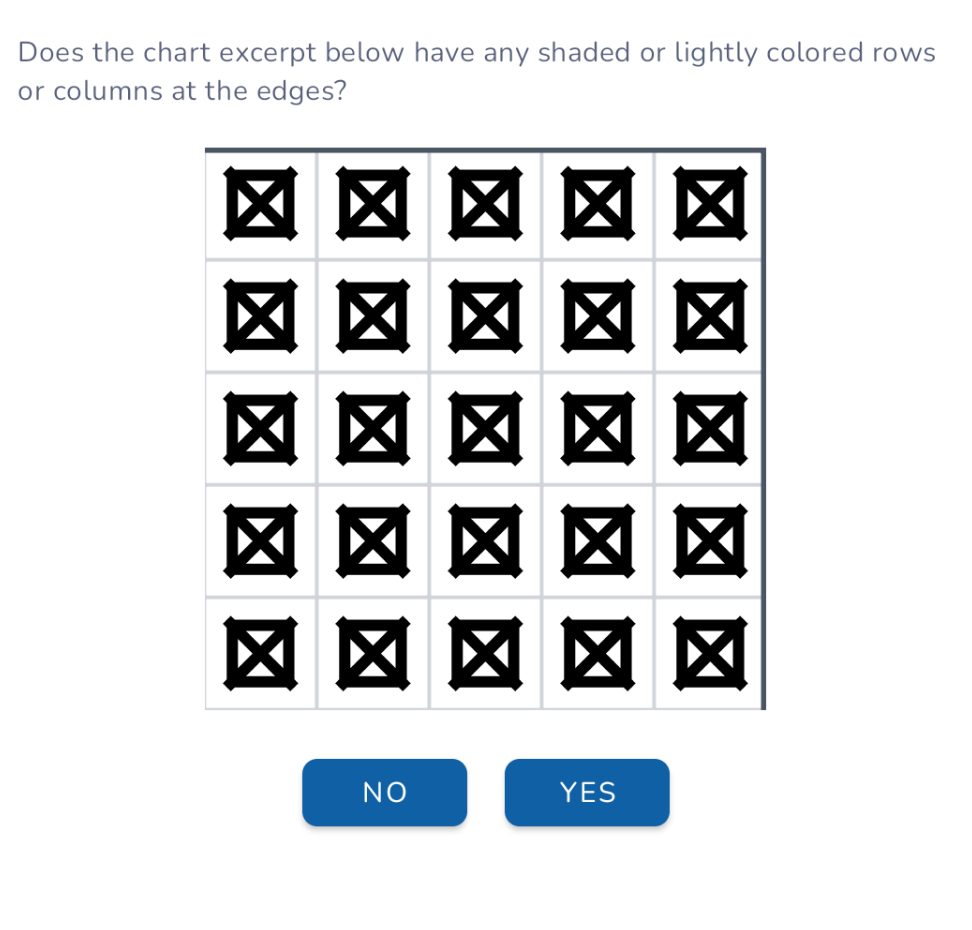
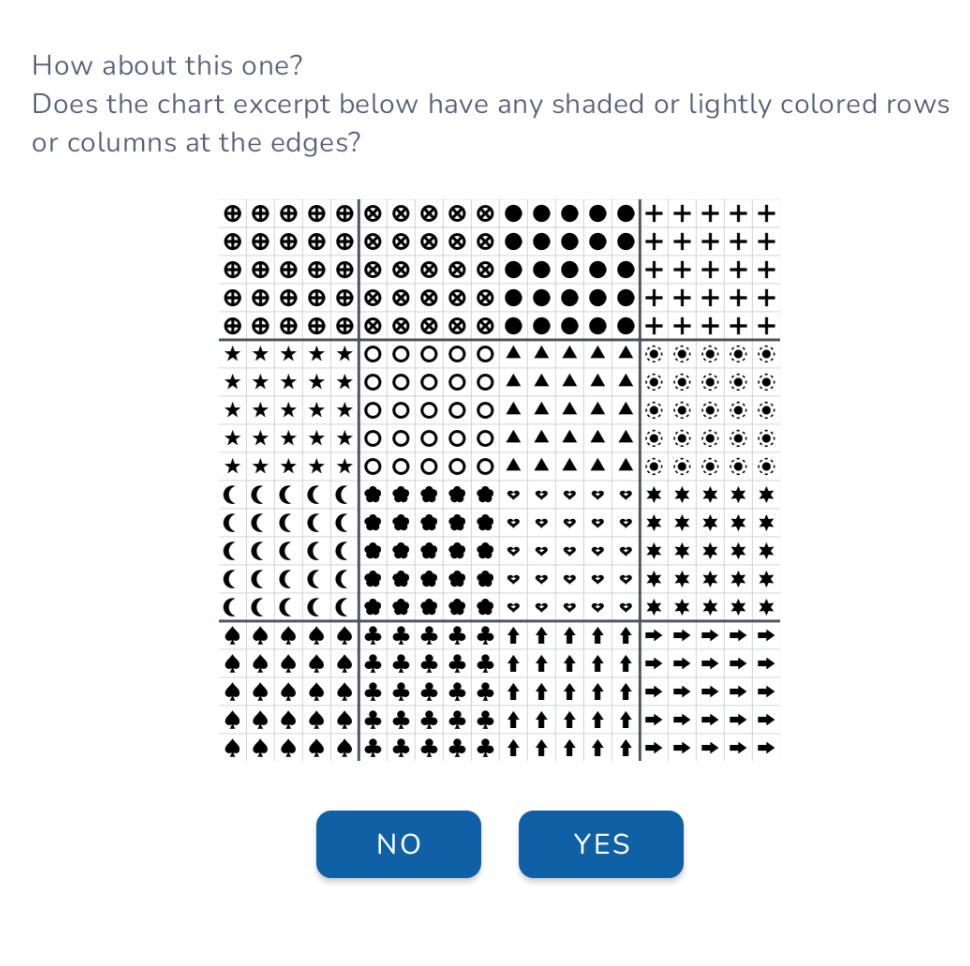
This helps Pattern Keeper join the chart pages correctly. The extra questions are part of setting up the chart.
Normal or large print?
These questions can appear whenever the stitch chart spans several pages, in either normal or large print. Large print fits fewer stitches on each page, so it is more likely to need these checks.
A normal-print PDF is a good starting point for Pattern Keeper; you can zoom in while stitching. Choose large print if you also want larger squares on paper.
If it says "Grids don't make sense"
Older Xstitchify PDFs sometimes placed two short chart sections on the same page to save paper. Pattern Keeper can have trouble joining those sections into the complete chart.
Open your pattern in Xstitchify's editor and download a fresh PDF, then import the new file into Pattern Keeper. New PDFs put each chart section on its own page, including short sections at the bottom of the pattern.
If the new file still shows this message, contact us with the pattern details and a screenshot of the message.
Missing thread numbers or colours
If Pattern Keeper says that it imported the chart but could not import all thread numbers, compare its thread list with the PDF's thread key.
- For an older download, open the pattern in Xstitchify's editor and download a fresh PDF, then import that file. A previous download in My Downloads may give you the original file again.
- Check that you imported the complete PDF with its thread key pages.
- If numbers are still missing, contact us with details of the pattern and what Pattern Keeper shows.
After import, check the thread numbers, symbols, stitch count and mockup against the PDF.
For more about the app's import prompts, see Pattern Keeper's import guide.
Was this guide helpful?
Still need help?
Send us a message and we'll get back to you as soon as we can. You can also reply to any email from Xstitchify.